
Configuration and Linking to HMRC
Purpose
Making Tax Digital for Income Tax Self Assessment (ITSA) needs us to be linked to your HMRC account before we can retrieve your businesses and obligations, or send quarterly updates. This article explains how to turn ITSA on, set your National Insurance number, link (or relink) to HMRC and select the HMRC business you report against.
Preparation
- Have your National Insurance number and your HMRC Government Gateway sign-in details ready.
- If you are an accountant acting for a client through an HMRC Agent Services Account (ASA), log in to the client’s database via Client Manager before you link. This allows us to recognise your ASA credentials when linking with HMRC.
- Trial and demonstration databases cannot be linked to HMRC; the ITSA configuration page tells you when this is the case.
Open the ITSA configuration
- Click on Config > Making Tax Digital for ITSA.
Opens the Config menu with the ITSA option –

Enable ITSA
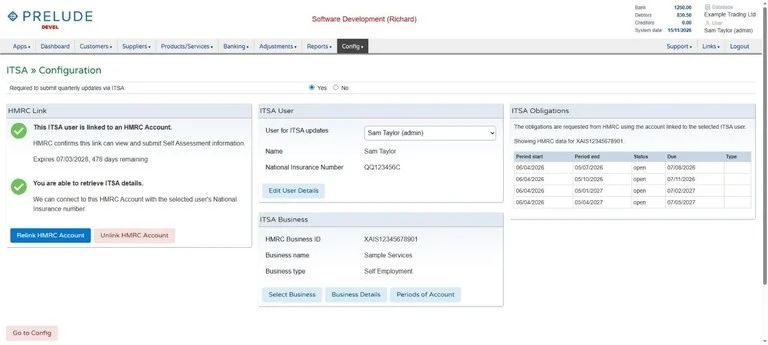
- Next to ‘Required to submit quarterly updates via ITSA’, select Yes. The page reloads and shows the HMRC Link, ITSA User, ITSA Business and ITSA Obligations panels.
- If you select No, only the Go to Config button is shown and no ITSA permissions are requested from HMRC.
Shows ITSA switched on, with the HMRC Link, ITSA User, ITSA Business and ITSA Obligations panels –
Note: In the stand-alone ITSA module there is no Yes/No option because ITSA is always on.
Set the user and National Insurance number
- If you have more than one user, choose the user who will submit updates in ‘User for ITSA updates’. We use that user’s HMRC link for every submission.
- In the ITSA User panel, click on Edit User Details.
- Check Name and enter your National Insurance number in ‘National Insurance Number’. We remove any spaces, change letters to capitals and check the format (two letters, six digits, then a letter A to D).
- Click on Submit.
Opens the Personal Details window –
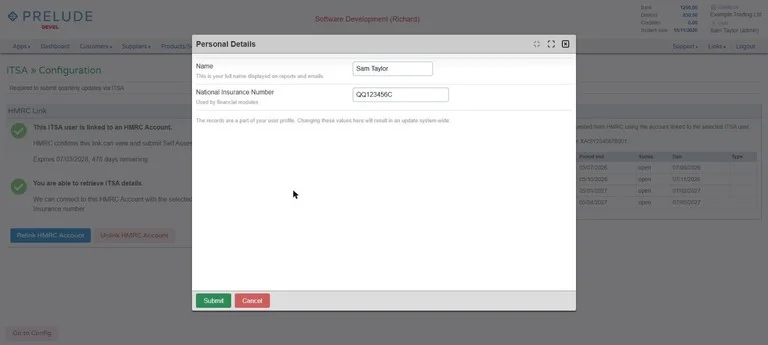
Note: These details are part of the user’s profile, so a change here applies system-wide. A valid National Insurance number is needed before we can check HMRC or select a business.
Link to HMRC
- In the HMRC Link panel, click on Link HMRC Account. We take you to HMRC to sign in with your Government Gateway details and grant us permission.
- Accountants using an Agent Services Account: make sure you logged in via Client Manager first (see Preparation), then sign in to HMRC with your ASA credentials.
- Approve the permissions HMRC lists. You are then returned to the ITSA configuration.
- When the link works, the HMRC Link panel shows ‘This ITSA user is linked to an HMRC Account’, the date the link expires, and ‘You are able to retrieve ITSA details’. If we cannot retrieve details, the panel shows the reason HMRC gives.
Shows a working link to HMRC, with the Relink HMRC Account and Unlink HMRC Account buttons –
Note: Before a link exists the panel tells you the user is not linked to an HMRC account and the button reads Link HMRC Account.
Relink to HMRC when VAT is already linked
HMRC only grants the permissions requested when the link was made. If you linked for Making Tax Digital for VAT first and have now turned on ITSA, the existing link does not include the Self Assessment permissions, so you need to relink to grant them. You also relink when a link has expired.
- Check that ITSA is switched on, as above.
- In the HMRC Link panel, click on Relink HMRC Account.
- Sign in to HMRC and approve all the permissions listed, including the Self Assessment ones.
- Check the panel shows the account as linked and that you can retrieve ITSA details.
Note: Relinking requests the permissions for every area that is switched on, so your VAT link keeps working. Unlink HMRC Account removes the link for the selected user and asks you to confirm first.
Select the HMRC business
- In the ITSA Business panel, click on Select Business. This is available only when the link works and a valid National Insurance number is held.
- Choose the business you report against, for example your self-employment or UK property business, then click on Submit.
- The ITSA Business panel shows the HMRC Business ID, Business name and Business type, and the ITSA Obligations panel lists your periods, their status and due dates from HMRC.
Lists the businesses HMRC holds for your National Insurance number –
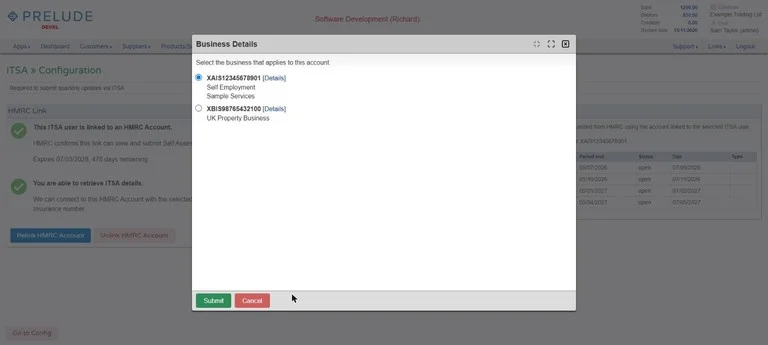
Note: If HMRC returns no businesses, check that you linked the correct HMRC account and that the National Insurance number is right.