
Accounting Data and Submitting Quarterly Updates
Purpose
Once we are linked to HMRC (see ITSA: Configuration and Linking to HMRC), your quarterly updates are prepared from the figures in your accounts. This article explains how your accounting data feeds ITSA, how to review and adjust the figures for a period, and how to lock and submit a quarterly update. It covers self-employment quarterly updates only. Finalising your accounts for the year is not yet available in the software and is not covered here.
Preparation
- Link to HMRC and select your HMRC business first. The ITSA dashboard shows four panels (HMRC Link, Full name, National Insurance Number and Business); all four must be green before you can prepare an update.
- ITSA needs a verified sign-in. If we ask for a code, complete the MFA step (authenticator app or emailed code) before opening the ITSA pages; the trusted-location option is not accepted for ITSA.
- Post all transactions for the period, including bank and cash entries, before you start. We read your profit and loss nominal accounts up to the end of the period.
- If you are an accountant acting for a client through an HMRC Agent Services Account (ASA), log in to the client’s database via Client Manager so we recognise your ASA credentials when linking and submitting.
How your accounting data feeds ITSA
HMRC asks for self-employment figures in set categories, such as turnover, cost of goods and professional fees. We match each profit and loss nominal account in your accounts to one of those categories, and total the postings for you.
- Cumulative: each quarterly update is the total for the tax year so far, not just the latest quarter. We add together all postings from the start of the tax year to the end of the period.
- Mappings: we supply default mappings from the standard nominal chart (for example Sales to Turnover, Rent & rates to Premises running costs). You can change any of them.
- Disallowable expenses: an account can also be mapped to a disallowable category, such as depreciation, so the amount is also reported as not allowable for tax.
- Balance sheet accounts, suspense and similar are excluded, as only profit and loss figures are reported.
Note: The defaults are a starting point, not tax advice. Check them against how you actually use your nominal accounts.
Open the ITSA dashboard
- Click on Reports > ITSA Period Updates.
- Each tax year has a table listing its periods, with the period start and end, status, due date and the available options. The heading shows whether HMRC has you on Standard or Calendar quarters.
- Only the earliest open period has a Prepare Update button; later periods become available once the earlier one has been locked or submitted.
Shows the ITSA dashboard with the status panels and the obligations for a tax year –
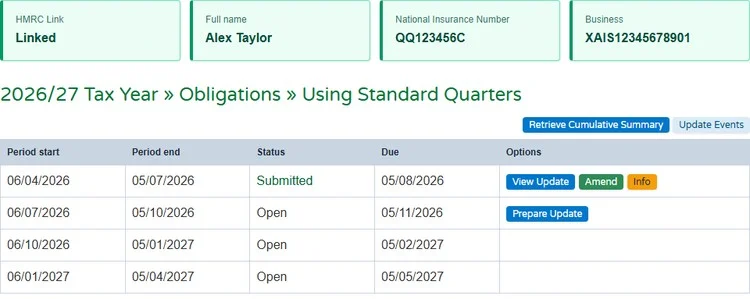
Note: If a panel is red, the dashboard shows a Configuration incomplete message with a link to the ITSA configuration instead of the periods.
Prepare an update
- Click on Prepare Update next to the open period. The Prepare Update window opens, showing the period dates.
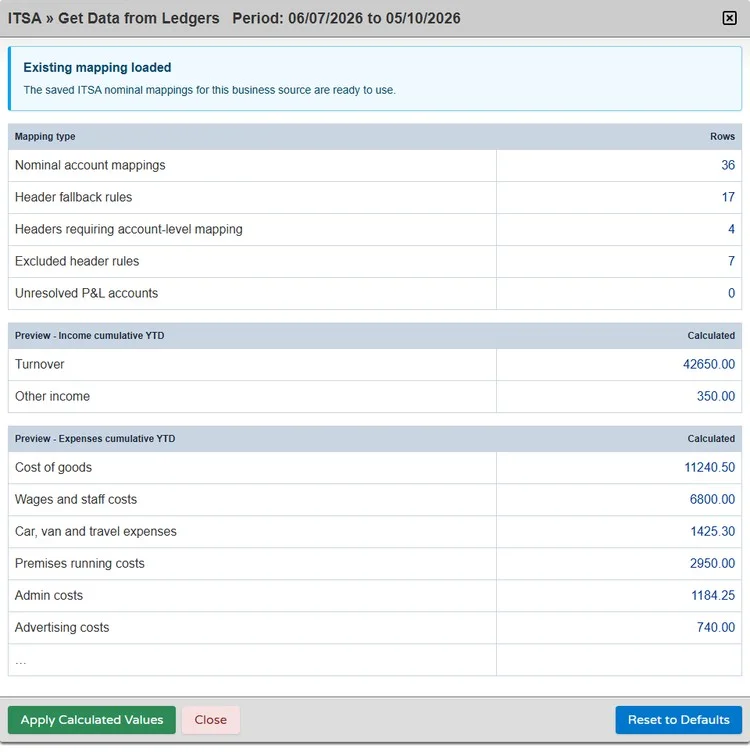
- Click on Get Data from Ledgers. We check your mappings and show how many accounts are covered by each kind of rule.
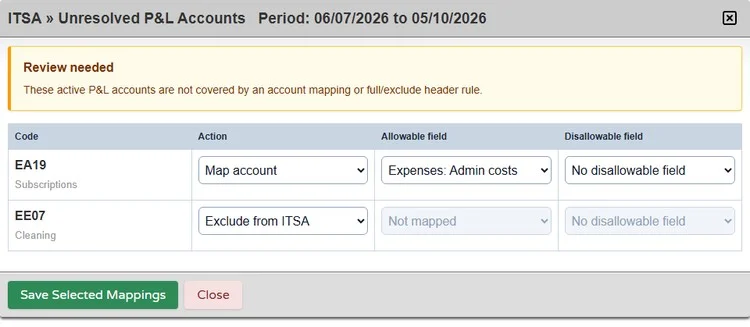
- If a message says there are unresolved P&L accounts, click on the number next to Unresolved P&L accounts. For each account choose Map account (and pick the allowable and, if needed, disallowable field) or Exclude from ITSA, then click on Save Selected Mappings. We cannot calculate or apply values until every active profit and loss account is resolved.
- To review or change the other mappings, click on the number next to Nominal account mappings or Header fallback rules, make your changes and click on Save Mappings.
- Check the preview totals for Income, Expenses and Disallowable Expenses, then click on Apply Calculated Values.
Opens the Get Data from Ledgers window with the mapping summary and preview –
Shows the accounts still to be mapped –
Note: Reset to Defaults replaces your saved mappings for the business with the standard defaults and clears any calculated values, so use it with care.
Review the figures
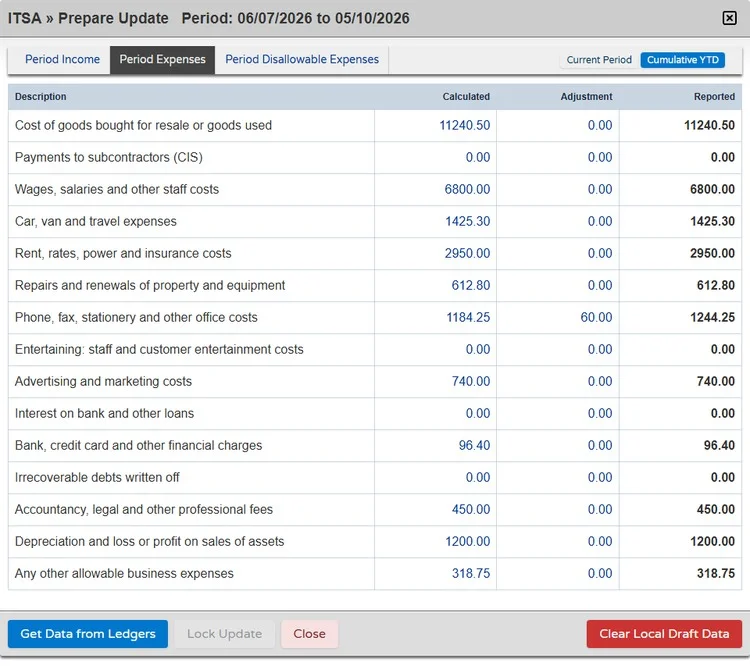
After you apply the values, the Prepare Update window shows three tabs: Period Income, Period Expenses and Period Disallowable Expenses. Each line has three amounts.
- Calculated: the total we took from your ledgers. Click on the amount to see which accounts and transactions made it up.
- Adjustment: any manual adjustments you have entered.
- Reported: Calculated plus Adjustment. This is the figure sent to HMRC.
- Use Cumulative YTD (the default) to see the figures exactly as HMRC receives them. Use Current Period to see only the movement since the previous update.
Shows the Period Expenses tab with the Calculated, Adjustment and Reported columns –
Adjust a figure
- Click on the amount in the Adjustment column for the line you want to change.
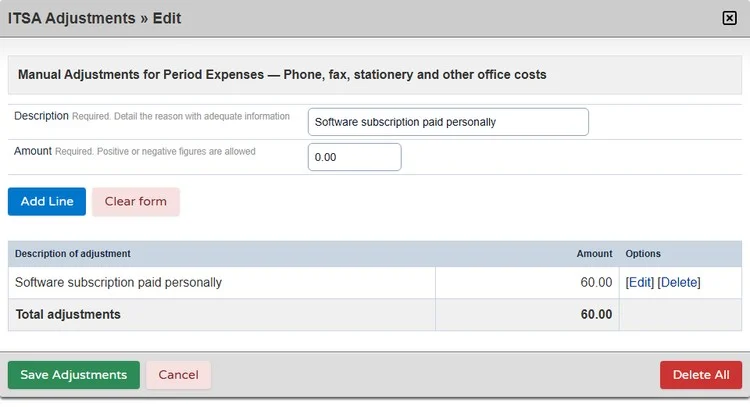
- Enter a Description that explains the reason, and an Amount (positive or negative), then click on Add Line. Repeat for further adjustments.
- Click on Edit or Delete next to a line to correct it.
- Click on Save Adjustments. The window closes and the Reported figure updates.
Shows the adjustment window with a line entered –
Note: Adjustments belong to the period and stay with the update once it is locked. They are cumulative, like the rest of the update.
Lock the update
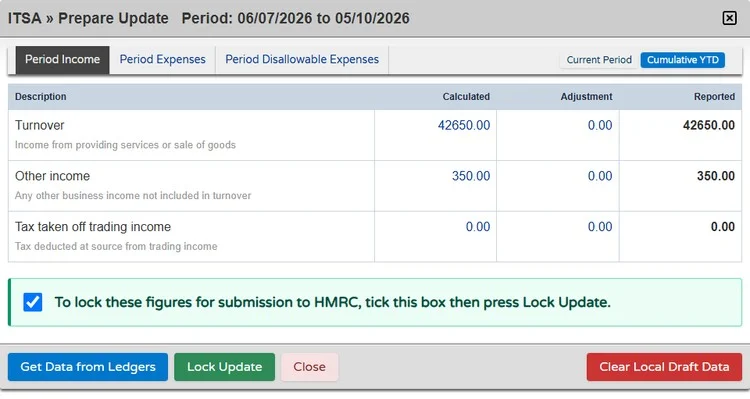
- When you are happy with the figures, tick the box ‘To lock these figures for submission to HMRC, tick this box then press Lock Update’, then click on Lock Update.
- If every Reported figure is zero, the update is a nil return. Tick the extra confirmation ‘All reported values are zero. Tick this box to confirm a Nil Period Update’ first.
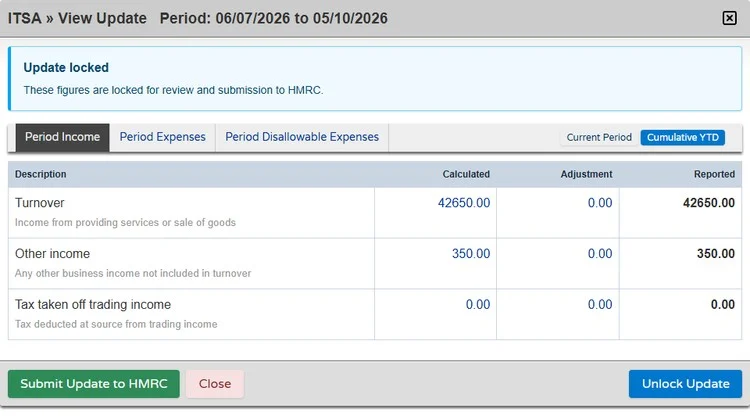
- Locking fixes the figures and links the ledger transactions to this update, so they are not picked up by a later period by mistake. The window now shows Update locked.
- If you spot a mistake before submitting, click on Unlock Update, correct it and lock again.
Shows the confirmation tick box and the Lock Update button –
Submit the update to HMRC
- Check the figures one last time. Once HMRC accepts an update you cannot unlock it; you can only amend it (see below).
- Click on Submit Update to HMRC. We ask you to confirm (‘This will submit the ITSA update to HMRC. Are you sure?’); click on Submit.
- Before sending, we check with HMRC that the period is still open and that your link allows us to view and submit Self Assessment information. If either check fails, we show the reason and nothing is sent.
- When HMRC accepts the update, the status on the dashboard changes to Submitted, shown in green.
Shows the locked update with the Submit Update to HMRC button –
Note: We record every submission, including HMRC’s correlation reference, so you have an audit trail. Click on Info next to the period to see when it was locked and submitted, by whom, and the reference.
Amend a submitted update
- Only the latest submitted update for the tax year can be amended. Click on Amend next to it on the dashboard.
- Click on Continue Amendment, then use Get Data from Ledgers and Adjustment as before. Because updates are cumulative, recalculate the figures for the whole period.
- Tick the lock confirmation and click on Lock Amendment, then click on Submit Amendment to HMRC.
Note: Amending an update after a Business Source Adjustable Summary has been generated marks that summary as void.
View the tax calculation HMRC holds
- On the dashboard click on Open Tax Calculations for the tax year to request and view HMRC’s in-year calculation based on your submitted updates.
- Click on Update Events at the top of the tax year to see a log of what has been locked, submitted and amended.
Note: The dashboard also shows year-end rows, such as Annual Submissions. Finalising your accounts for the year is not yet available in the software, so please do not use them for your final tax return.